In one sentence
A Meeting record holds the agenda, attendance, minutes, and the actions that came out of the meeting — connected to NCRs, audits, risks, and documents the meeting touched, so the audit trail stays joined-up.
- Actions raised in the meeting are real Action records. They show up in each assignee's Actions view automatically.
- Meetings have a dedicated Access tab, not just a modal — useful when confidentiality matters.
- AI can draft the record from raw material — paste notes or drop a file into a new meeting (AI meeting import), or summarize a transcript on an existing one (AI Meeting Minutes).
Creating a meeting
QFormance records meetings that already happened — there's no separate planning mode. Three ways to create one:
- Record Meeting from the meetings list — manual entry. Set the title, date / time, location, and attendees, plus the two freeform text fields: Agenda (what the meeting was about) and Minutes (what was said and decided).
- AI meeting import — paste your raw notes or drop in a file, and AI drafts the whole record for you to review (see AI meeting import below).
- Import from calendar — pick a meeting that already happened on your Google or Microsoft calendar; QFormance creates the record with the title, time, attendees, and (when available) the transcript already attached.
For manual entry:
- Click Record Meeting from the list.
- Set title, date / time, and location.
- Write the Agenda and the Minutes. Both are freeform text — a meeting no longer has a per-topic agenda-item table; Agenda is the overview and Minutes is the narrative of what happened.
- Add attendees and mark attendance.
Meetings use multi-facility, multi-department scope. See Facility & Department Scope.
Import from your calendar
If you connect Google Calendar or Microsoft Calendar from your profile, you can import meetings that already happened directly into QFormance — pre-filled, with the transcript pulled in if your meeting tool produced one.
Connecting a calendar
Go to your Profile → Integrations and authorize Google Calendar or Microsoft Calendar (or both). The OAuth scopes are calendar-only — separate from the SSO scopes used for sign-in. See Single sign-on (SSO) for how the two flows differ.
Importing an event
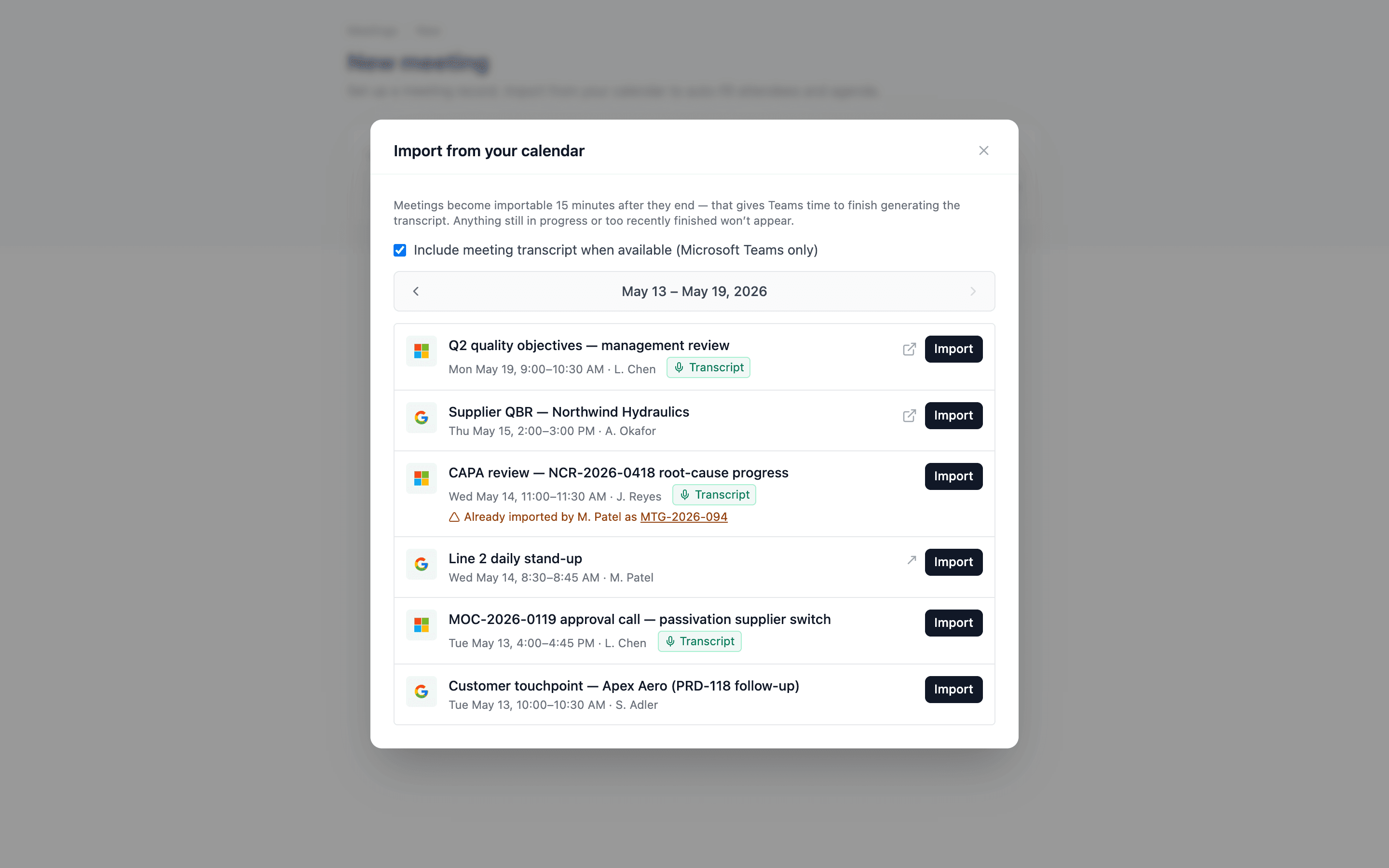
From Meetings → New meeting → Import from calendar (the dialog button at the top), you'll see a 7-day window of recent events across every connected calendar. Step the window backwards up to 21 days; older than that and the picker stops looking.
Click Import on any event and QFormance creates a meeting record with:
- Title, date and time copied from the event.
- Attendees mapped to org users where the email matches; unmatched attendees go in as plain attendees you can edit.
- Transcript, if your meeting tool produced one — Teams transcripts in particular take a few minutes to materialize after the meeting ends.
The transcript lands as a meeting attachment and is also picked up by AI Meeting Minutes — so a typical flow is import event → click Summarize with AI → review draft minutes → save.
QFormance waits about 15 minutes after a meeting ends before showing it in the import picker. That's intentional — it gives Teams transcripts time to appear in Microsoft Graph. Importing the moment the meeting ends often pulls a meeting with no transcript attached, and you'd have to re-import later.
Already imported
If another user in your org has already imported the same calendar event, it shows up in the picker with an Already imported as MTG-xxxx badge. Click through to the existing meeting rather than creating a duplicate.
AI meeting import
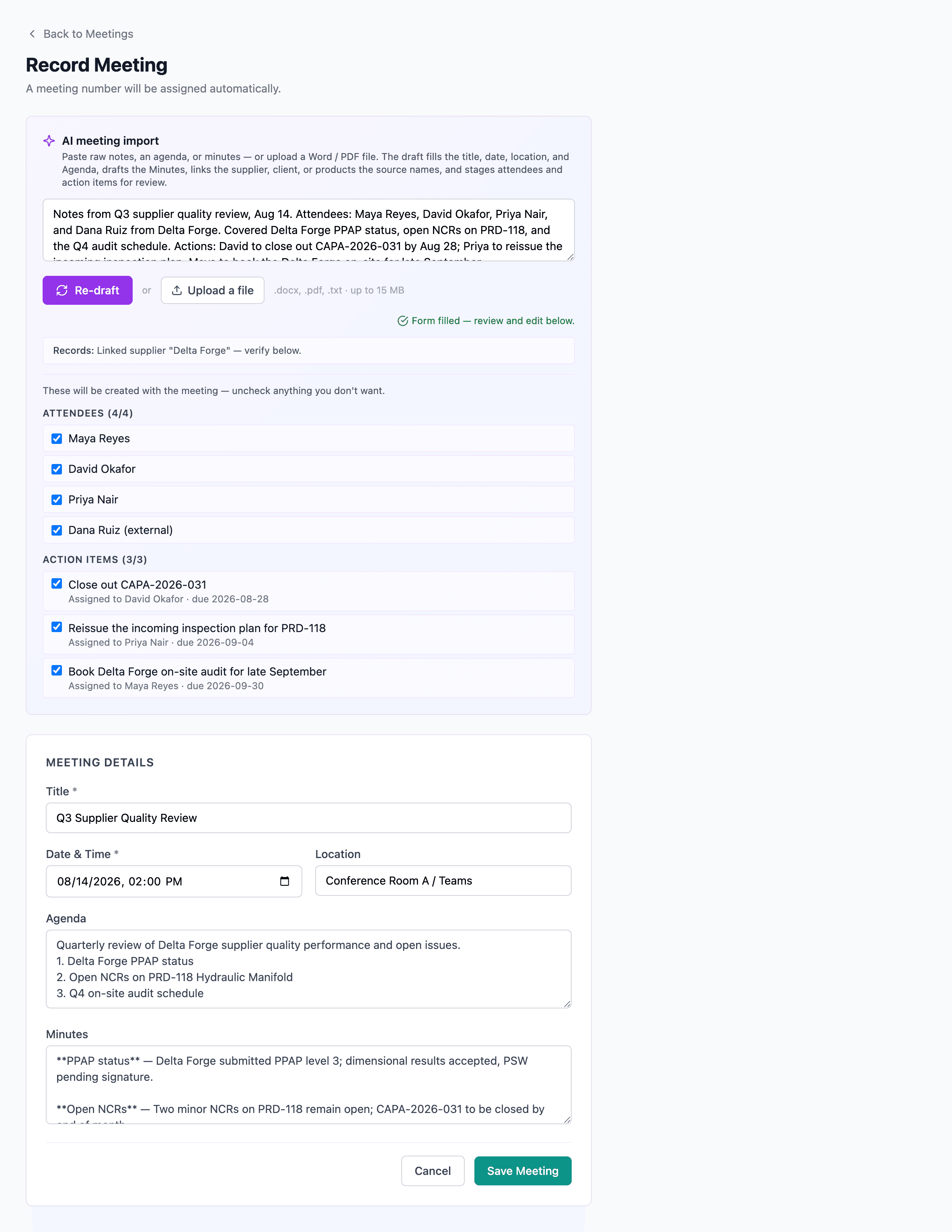
On the Record Meeting page, an AI meeting import panel turns raw material into a fully-drafted meeting you review before anything is saved. It's distinct from AI Meeting Minutes, which summarizes a transcript on a meeting that already exists — AI import builds the whole record up front, on the create page.
What it accepts
- Pasted notes — type or paste whatever you captured.
- An uploaded file —
.docx,.pdf, or.txt, up to 15 MB. A scanned PDF with no text layer can't be read, so it's rejected with a friendly message asking you to paste the notes instead.
What it drafts
From that material, the draft fills the title, date / time, location, the Agenda (a one-line overview plus a numbered topic list), and always the Minutes — a markdown narrative of what was discussed and decided, organized by topic. (Because QFormance records meetings that already happened, minutes are always drafted, never a forward-looking plan.)
Attendees and action items stage as checkbox review lists:
- Attendee names are matched against your org's members; a name that doesn't match is staged as an external attendee.
- Each action carries a description, an assignee, and a due date.
- Untick any row to drop it. Everything — fields, attendees, actions — is editable before you click Create, and nothing is saved until you do.
The import also auto-links the supplier, client, or products the source names — confident textual matches only, every id validated server-side against your org's real records, surfaced as a "Linked … — verify below" note so you can confirm or remove it.
The import is built to stage, not to invent. Every person and entity id it proposes is validated server-side against your org's member and record lists — a name the model guesses that doesn't resolve is dropped, not linked. The model is explicitly instructed never to invent people, dates, times, locations, or actions that aren't in the source, and nothing persists until you click Create. It's a fast first draft you own, not an autopilot.
Admins enable it with the Meeting import toggle at Admin → Organization → AI Settings; usage is metered like every other AI feature. See AI Features & Settings.
Detail tabs
| Tab | What lives here |
|---|---|
| Overview | Summary, access card, scope |
| Details | Core fields |
| Attendees | Attendance tracking |
| Actions | Action items raised in the meeting |
| Attachments | Supporting files |
| Links | Connections to NCRs, audits, risks, documents, and products |
| Access | Dedicated tab — not just a modal (see below) |
| History | The unified record-history feed — see Record history |
The Overview's Meeting Details card leads with the meeting title, then date, location, and scope. It also shows the optional reference number — a free-text field you set on the Details tab (a meeting-minutes number, an external ID); it now saves and surfaces here on the card.
Dedicated Access tab
Meetings lift access control into a full Access tab — not just a sidebar modal — because meetings frequently have confidentiality requirements the sidebar layout can't comfortably handle. The tab shows the full Access panel plus a principal-list view.
A compact Access summary card still lives on Overview for a glance-check, with an Edit → shortcut into the tab.
Actions in meetings
Create actions during the meeting:
- Assign to team members with due dates.
- Track status (Open / In Progress / Completed / Canceled).
- Actions roll up to each assignee's Actions view automatically.
A common pattern: paste the rough notes, run AI Meeting Minutes to draft structured minutes and a list of agreed actions, accept the actions you want, edit anything else.
Linked items
Connect meetings to:
| Module | Why |
|---|---|
| NCRs | Review non-conformances and import their actions |
| Audits | Review findings and import actions |
| Risks | Review and discuss risk items |
| Documents | Reference relevant documents and reviews |
| Products | Tie the meeting to specific parts, SKUs, or equipment under review |
Links are bidirectional — the meeting shows the linked record, and the record shows the meeting.
Closing a meeting
Closing the meeting locks the record. Use it once minutes are finalized and actions are assigned, so the record settles into the audit trail.
If your organization has Require passkey for approvals turned on, closing a meeting prompts for a fresh passkey confirmation. The confirmation lasts 5 minutes. The user closing must have at least one passkey enrolled — see Auth policy and Passkeys.
If you delete a meeting
An open meeting can be deleted from its detail page; it lands in Trash for 90 days where an admin can restore it. Minutes, attendees, actions raised in the meeting, links to other records, and attachments all come back together on restore.
Closed meetings are permanent. Once locked, the meeting is part of the record of what was decided; it can't be deleted directly. Reopening a closed meeting is a logged action; from the reopened state it can be deleted.
See Soft-delete — how it works.
Finding meetings in the list
The meetings list page has a filter for every column right in the table header — narrow by status, scope, date, and so on, all at once. A count of matching meetings sits in a footer strip below the table, so you always know how big the set you're looking at is.