In one sentence
A smart view is a named snapshot of the document register's filters — category, class, department, type, hidden statuses, search — saved as a one-click "folder" in a rail down the left of the register, either shared with the whole org or kept personal to you.
- They're saved filters, not real folders. A view doesn't hold documents — it matches them. Documents flow in and out automatically as their metadata changes, so nothing ever needs re-filing and a document can appear in as many views as its metadata satisfies.
- Two kinds: Shared and My Views. Shared views are admin-curated and visible to everyone in the org; My Views are personal to you. Anyone can save a personal view; sharing one org-wide takes a permission.
- A view captures the filters you have applied right now. Set the register up the way you want it, click Save view, name it. Later you can update the view to your current filters, rename it, reorder it, or delete it.
Where they live
Smart views sit in a rail down the left side of the document register, above the filter controls. The rail splits into two labeled sections:
- Shared — org-wide views an admin has curated. Everyone in the org sees the same list.
- My Views — views you've saved for yourself. Only you see these.
Click a view and the register applies its saved filters instantly. The active view is highlighted so you always know which preset you're looking through. Clearing your filters (below) deselects it.
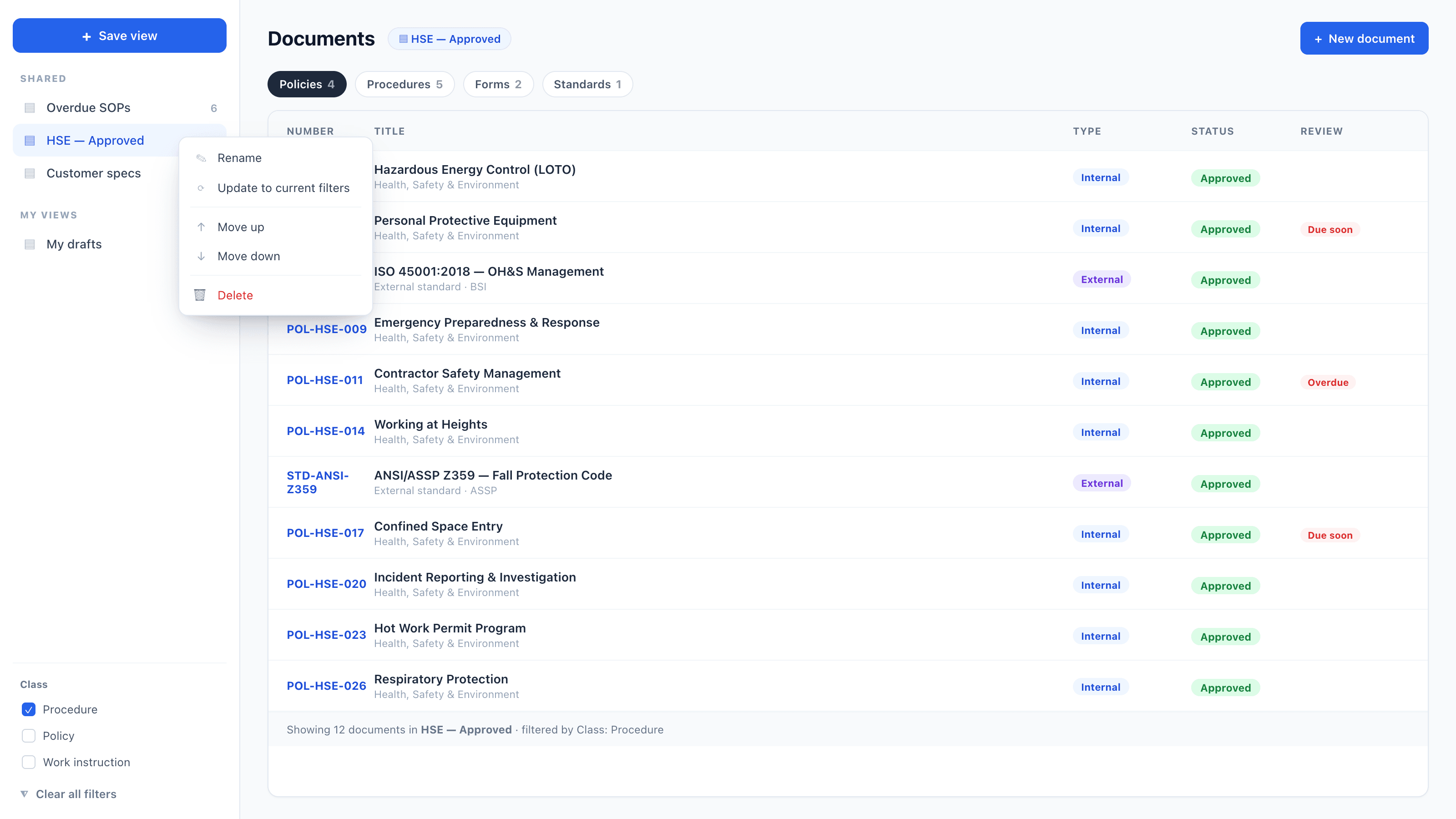
The smart-views rail down the left of the register. Save view sits at the top; Shared and My Views are split below it; the active view is highlighted. A row's ⋯ menu offers Rename, Update to current filters, reorder, and Delete. The class filters and Clear all filters sit at the bottom of the rail.
Creating a view
Views are built from what's on screen, so the flow is: filter first, then save.
- Filter the register the way you want — pick a class, a category, a department, the internal/external type, a search term, hide the statuses you don't care about.
- Click Save view at the top of the rail. (The button is disabled until at least one filter is active — its tooltip reads "Apply a filter first, then save it as a view.")
- Give it a name.
- If you have the permission and want everyone to have it, tick Share with org. Leave it unticked to keep the view personal.
- Save.
A shared view lands under Shared for the whole org; a personal one lands under My Views for you alone.
A view saves the register's filter parameters — category, document class, department(s), internal/external type, hidden statuses, and the search text. It deliberately does not save the display mode (card vs register table): a view is about which documents, not how they're laid out. Because the view is just those filter values, the set it shows is always live — add a document in that category tomorrow and it appears in the view with no further action.
Managing a view
Each view row carries a three-dot menu (shown when you can manage that view — always for your own, and for shared views if you have the permission). It offers:
| Action | What it does |
|---|---|
| Rename | Edit the view's name inline. |
| Update to current filters | Overwrite the view's saved filters with whatever the register is filtered to right now. This is how you evolve a view without deleting and recreating it. |
| Move up / Move down | Reorder the view within its section. The order is the order everyone (for shared views) or you (for personal) sees. |
| Delete | Remove the view. This only deletes the saved filter — it never touches a single document. |
Who can share
Saving a personal view needs no special permission — any register user can do it. Curating shared (org-wide) views is gated on the Manage shared document views permission (documents.manage_views), which defaults to Admin and can be granted to any custom role or individual user. That permission controls creating, editing, reordering, and deleting shared views; it also unlocks the Share with org toggle on the save form. Personal views stay personal to their owner regardless.
Clearing filters
At the foot of the register's filter controls, a Clear all filters control resets everything at once — category, class, department, type, search, and hidden statuses — and deselects the active smart view, dropping you back to the full register. It only appears when at least one filter (or view) is active.
Related
- Documents — the register, its filters, and the document lifecycle
- Admin: Documents — categories and classes, the metadata smart views filter on
- Roles & permissions — the Manage shared document views permission