In one sentence
Drop in raw meeting notes or a transcript file and AI returns structured minutes, agreed action items, and a few flagged recommendations — you review, edit, and save the lot in one pass.
This runs on a meeting that already exists (its Details tab). To draft a whole meeting record from scratch — title, agenda, minutes, attendees, and actions — from notes or a file on the create page, see AI meeting import instead.
- You stay in the chair. AI drafts; you accept, edit, or deselect each piece before anything is saved.
- Agreed actions are pre-selected; recommendations aren't. Recommendations are AI's opinion; agreed actions came from the room.
- Reference documents improve the minutes. Pointing the AI at the SOPs the meeting touched makes summaries more accurate for compliance discussions.
See AI Features & Settings for the org-level prerequisites.
Opening the feature
From a meeting's Details tab, click Summarize with AI. A two-step modal opens.
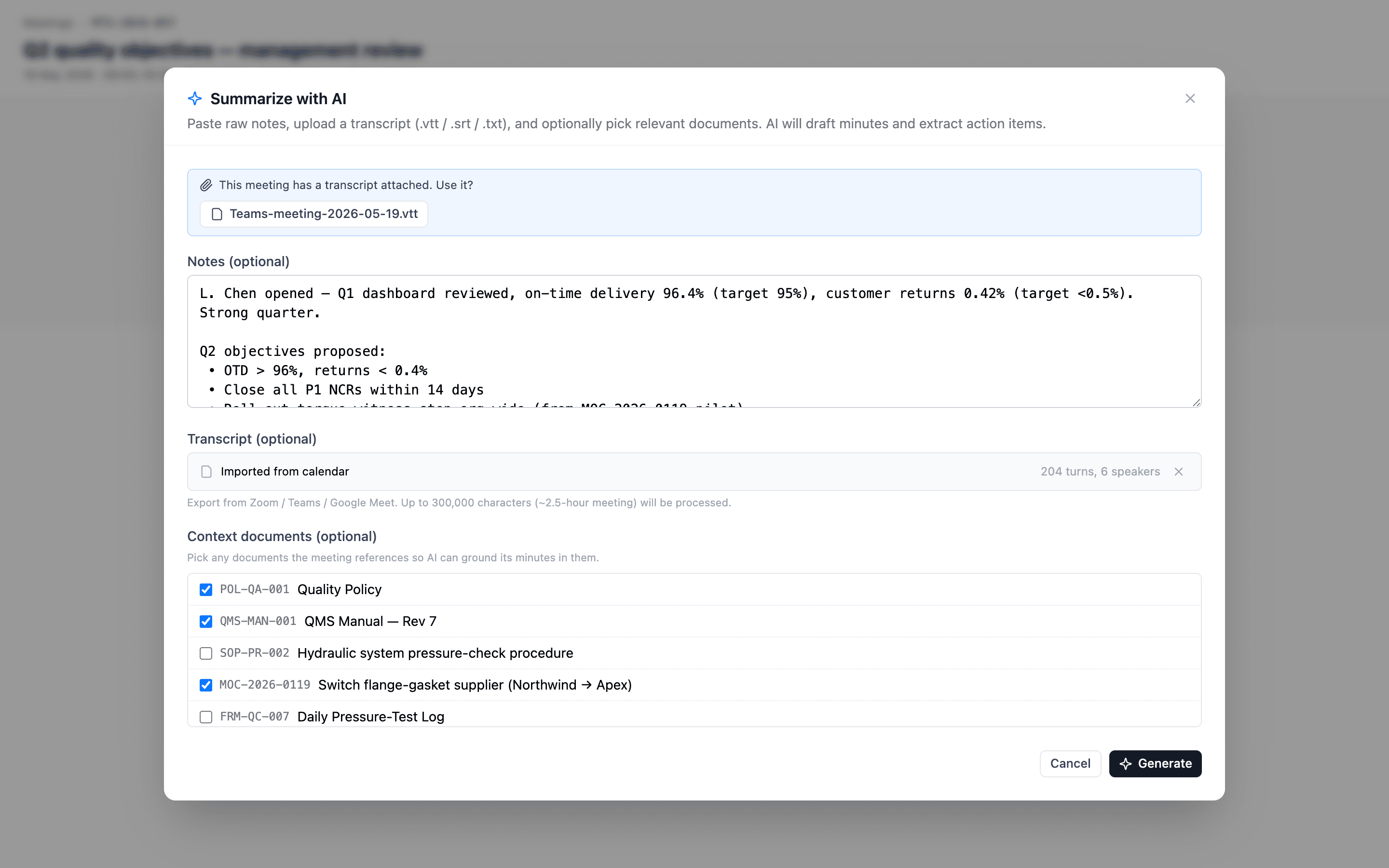
Step 1 — Choose sources
Provide any combination of inputs. AI draws on everything you include.
Paste meeting notes
Type or paste raw notes directly — bullet points, rough prose, shorthand, whatever you captured during the meeting. AI handles unstructured input.
Upload a transcript file
Upload a transcript exported from your meeting tool:
| Format | Source |
|---|---|
| .vtt | WebVTT — Zoom, Google Meet, Microsoft Teams |
| .srt | SubRip — most platforms support exporting this |
| .txt | Plain-text transcript |
Uploaded transcript files are saved to the meeting's attachments automatically, so the source is captured on the record. If the meeting already has a transcript attachment, a Use this transcript button lets you select it without re-uploading.
Upload an audio recording
No transcript export? Upload the audio recording directly and QFormance transcribes it for you before drafting the minutes.
| What | Detail |
|---|---|
| Formats | mp3, m4a, wav, webm, ogg, flac (most common recorders) |
| Size limit | 25 MB per file — roughly a 1–2 hour recording at typical compression |
| What happens | The audio is saved to the meeting's attachments, transcribed via OpenAI, and the resulting text drops straight into the notes for step 2 |
The audio file is kept as an attachment even if transcription fails, so the recording is never lost. Transcription is a separate admin-controlled feature — if it's turned off, only the transcript-file and paste options appear (see Admin prerequisites).
Or skip the upload — import from your calendar
If you create the meeting via Import from calendar, QFormance pulls the transcript automatically (when your meeting tool produced one). Open the freshly-imported meeting, click Summarize with AI, and the Use this transcript option is already there — no upload step.
Reference documents
Optionally select approved controlled documents the meeting referenced — SOPs, policies, work instructions. AI grounds the minutes in their content, which improves accuracy for compliance-relevant discussions.
Only documents you have access to appear in the picker. AI only receives the content of documents you give it.
Step 2 — Review
After AI processes your sources, a three-panel review screen appears.
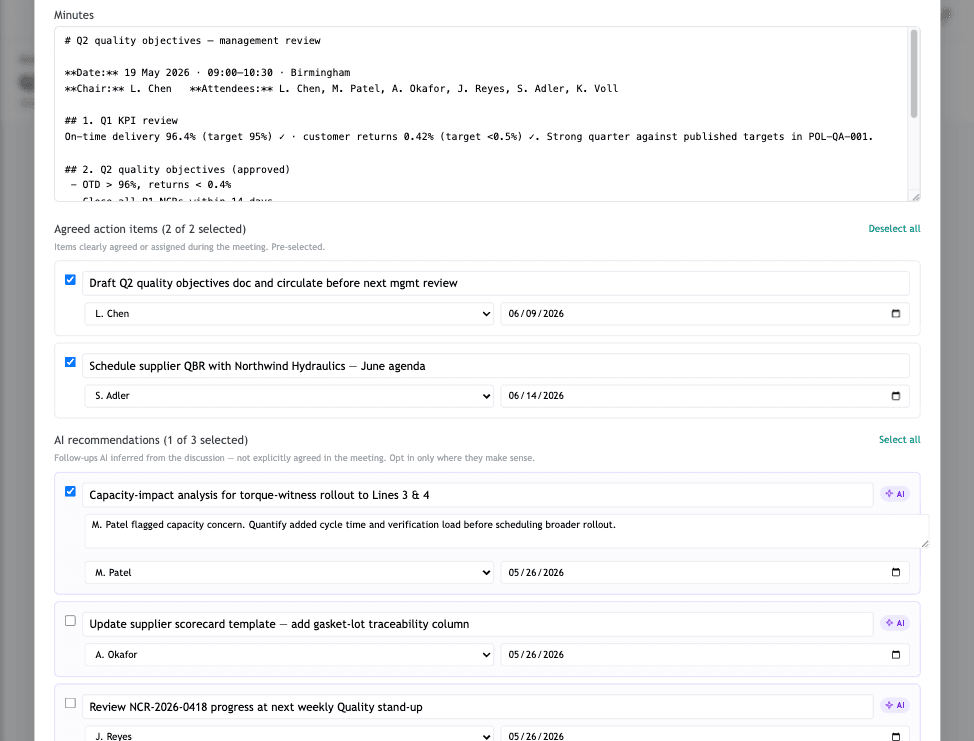
Minutes — fully editable before saving.
Agreed action items — pre-selected. Deselect any you don't want; edit assignee and due date.
AI recommendations — unselected by default. Opt in to the ones you want to act on.
Minutes
A markdown summary covering decisions, key discussion points, and next steps. Fully editable before saving — adjust wording, add context, or remove anything that shouldn't be in the record.
Agreed action items
Actions that were clearly decided or assigned during the meeting. Pre-selected — you can deselect any you don't want. Edit title, description, assignee (any org member), and due date per item.
AI recommendations
Follow-ups AI inferred from the conversation — unresolved risks, compliance exposures, process improvements. Shown as violet cards and unselected by default. Each recommendation includes a one-sentence rationale and defaults to a due date one week out.
A Select all / Deselect all toggle is available for both Agreed Actions and Recommendations groups.
Saving
Two options at the bottom of the modal:
| Action | What it does |
|---|---|
| Save minutes only | Writes the minutes text to the meeting record. No actions are created. |
| Save minutes + N actions | Writes minutes and creates real Action records for every selected item — both agreed actions and opted-in recommendations — linked to the meeting. |
Created actions appear in each assignee's Actions view automatically.
Limits
- Input size — up to about 300,000 characters of combined notes and transcript text (roughly a 2.5-hour meeting). Inputs exceeding this are truncated with a warning before processing.
- Audio file size — audio recordings are capped at 25 MB per file for now. For a longer session, export the transcript from your meeting tool and upload that instead, or split the recording. (Larger-file support is planned.)
- Video — direct video upload isn't supported. Extract the audio track or export a transcript first.
Admin prerequisites
AI Meeting Minutes requires:
- AI enabled org-wide — at Admin → Organization → AI Settings.
- Meeting minutes feature enabled — if turned off in the per-feature controls, users see a clear message instead of the Summarize button.
- An AI key — either the platform key (covered by your contract) or your own provider key. Cost is typically a few cents per summary at normal meeting lengths.
Audio transcription has its own controls in the same place:
- Meeting audio transcription has its own provider section in AI Settings — platform key, bring-your-own OpenAI key, or disabled. Transcription runs on OpenAI (Anthropic has no transcription model), so it uses the same second-vendor key as semantic search — stored separately. When it's disabled, the audio-upload option simply doesn't appear; the paste and transcript-file options still work.
- Transcription usage is metered like every other AI feature and logged for your records.
See AI Features & Settings for the AI setup.