In one sentence
A document moves from Draft to Approved through a 1-, 2-, or 3-step approval chain — the final step picks the revision type, the system writes a permanent snapshot, and a question-health check warns if any audit questions just lost their anchor.
- The approval chain derives from the Reviewer and Approver fields on the document. Routing rules can pre-fill them.
- The final approver picks the revision type (Patch, Minor, Major) — that's what bumps the version.
- Approval writes a permanent snapshot. Every prior version stays accessible, restorable, and exportable.
The approval chain
Each document stores a Reviewer and Approver. The chain derives from those fields:
| Setup | Resulting chain |
|---|---|
| No approver set | Cannot submit |
| Only an Approver | 1-step (Approver only) |
| Reviewer = Approver | 1-step |
| Different Reviewer and Approver | 2-step (Reviewer → Approver) |
Routing rules at Admin → Documents → Approval Routing can auto-fill these based on facility, class, and category. See Admin: Documents for the rule mechanics.
Submitting for approval
On a Draft or Rejected document:
- Confirm (or update) Reviewer and Approver.
- Open the Approval panel in the sidebar.
- Optionally write Revision notes describing what changed.
- Click Submit for approval.
Status changes to Under Review and the first approver is notified.
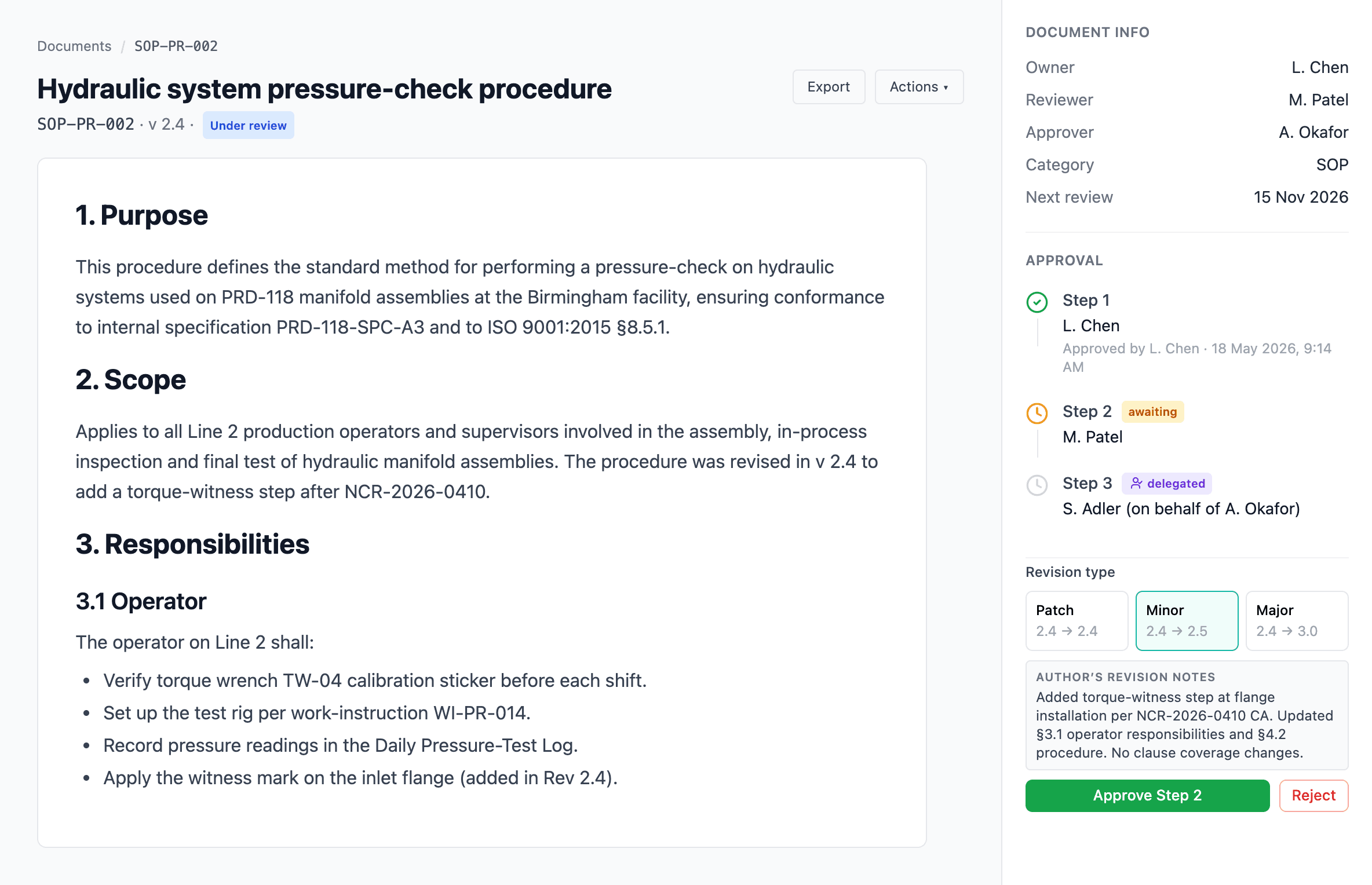
Approving a step
When it's your turn, the document shows approve / reject controls.
- Non-final steps have an Approve Step N button.
- The final step also asks for a Revision type (Patch / Minor / Major) with a live preview of what the new version number will be.
- The author's revision notes (if any) are shown for context.
If your organization has Require passkey for approvals turned on, approving any step prompts for a fresh passkey confirmation. The same gate applies to direct-publishing a patch revision (when Allow patch direct-publish is enabled at Admin → Documents → Settings), since that flow is effectively self-approval. The confirmation lasts 5 minutes; the approver must have at least one passkey enrolled — see Auth policy and Passkeys.
What revision types do
| Type | Effect on version |
|---|---|
| Patch | Bumps no part of the version. Used for spelling and grammar fixes. |
| Minor | Increments the minor part. |
| Major | Increments the major part; resets minor to 0. |
Editorial-only revisions
A minor or major revision normally drops a revision marker — a small margin triangle — beside every section whose content changed. When a revision touches a lot of sections cosmetically (a reformat, a renumbering pass, a template migration), that's noise. The submit-for-approval modal has a checkbox for it:
Editorial only — no revision markers — bumps the version like any revision, but won't flag individual sections in the margin.
Tick it and the revision behaves normally in every other respect — the version bumps, a snapshot is written, acknowledgement fires per the chosen mode — but no per-section markers are recorded. The checkbox appears only on minor and major revisions (a patch records no markers anyway). Editorial revisions carry an Editorial tag in version history so the trail shows plainly that the version bumped without flagging sections. It changes only the markers — it does not change whether the version requires acknowledgement, which you set separately on the same modal.
Rejection
Any step can reject. A Rejection reason is required. The document returns to Draft; the rejection reason is preserved on the next submission until replaced.
Return to draft
From Under Review, a reviewer or approver can return the document to Draft without a formal rejection — handy for minor tweaks that don't warrant a rejection record.
Delegations
Admin → Delegations lets approvers temporarily route their approval authority to someone else for a date range.
While a delegation is active:
- Approvals route to the delegate.
- The chain shows delegate (on behalf of original) so the audit trail is preserved.
- The delegation step shows a purple delegated badge.
See Approvals for the user-facing delegation flow.
Question health check on approval
Because audit questions can reference document sections by heading, approving a change to a linked document can invalidate questions. On approval, the system runs a health check:
| Status | Meaning |
|---|---|
| Broken | The heading a question pointed at has been removed. |
| Needs review | The heading is still present but its section content changed materially. |
If any are flagged, an amber notice appears with a link to the Question Bank so you can repoint or retire affected questions.
The health check is a warning, not a block. The approval still goes through. Open the Question Bank link from the notice and address flagged questions before the next audit runs.
Version history
Every approval writes a permanent version snapshot — title, content, metadata, author, approver, notes. The Version History sidebar shows them newest-first with:
- Version number
- Revision type (Major / Minor / Patch)
- An Editorial tag on revisions marked editorial-only (no per-section markers were recorded)
- Date and actor
- Notes (if any)
Click any version to view it as it was at approval time.
Restoring a prior version
Click Restore on any historical version to pull its content back into the current draft. This only copies content — it doesn't revert metadata or re-open an approved document. The current version number is preserved; the restore action is tracked in the activity log.
Diff view
Toggle Diff to compare the current draft against the last approved version side-by-side. Additions, deletions, and heading changes are highlighted. Useful for reviewers who want to focus on what actually changed.
On an approved document, you don't have to open the whole diff to see what moved: revision markers put a small triangle beside each changed section, and clicking one opens that section's diff on its own. Those section diffs — and the toggle above — compare against the last substantive version, meaning the most recent minor or major revision, skipping any patch published since. That way a spelling patch slipped between two real revisions doesn't quietly become the baseline and erase the meaningful comparison.
Retiring a document
Mark an approved document Obsolete from its actions menu. The system detects documents that link to it (by title, heading anchors, or doc-link references) and warns before completing the transition.
Obsolete documents:
- Disappear from the active register.
- Stay reachable via direct URL for the audit trail.
- Cannot be picked in reference / link pickers.
- Retain all prior versions and activity.